Getting started
Welcome to Swarm Release Manager — SRM for short. This is the first stop in the guide. By the end of it you'll know what the app is for, how to sign in, and where the important things live. It takes about five minutes to read, and you don't need to set anything up first.
#What SRM is for
Shipping a release usually means several people (and, increasingly, several AI agents) working on different pieces at the same time — a feature here, a fix there, a database change over there. The hard part isn't the individual work. It's the coordination: knowing who's on what, which pieces have to wait for others, whether anything has quietly stalled, and whether the whole thing is actually safe to ship.
SRM is the shared place where all of that lives. Instead of coordination happening in scattered chat messages and half-remembered status updates, a release in SRM holds one honest, up-to-the-moment picture that everyone — and every agent — reads from and writes to:
- The work, broken into pieces, each with its own state.
- The order, so pieces that depend on each other don't collide.
- Who's holding what right now, so two people don't grab the same piece.
- What's been reviewed, and whether anything is blocking the release.
- The deploy itself, tracked step by step.
The key idea: SRM is a shared record, not just your personal view. When you open a release, you're looking at the same live truth as everyone else on it.
If some of those words are new — release, component, claim, dependency — don't worry. The next article, Core concepts, is a plain-language glossary that explains each one. This article is just about finding your way around.
#Signing in
SRM is a hosted app, so there's nothing to install — you use it in your browser.
When you land on the site while signed out, you'll see Log in and Register in the top-right corner.
Choose Log in, and you'll reach the sign-in screen.
You have a couple of ways in:
- Email and password. Enter your email address and password and select Log in. Tick Remember me if you're on a device you trust and would rather not sign in every time.
- A passkey. If you've set up a passkey (a fingerprint, face, or device unlock instead of a password), the app offers it here automatically — follow your device's prompt.
Forgotten your password? Use Forgot your password? next to the password field and we'll email you a reset link. Brand new and don't have an account yet? Use Sign up at the bottom.
For the full details on accounts, passkeys, and password resets, see the Getting in reference article.
#Finding your way around: the nav rail
Once you're signed in, the app is organized around a navigation rail down the left side (on a phone, the same links sit in a strip along the bottom). It's the same everywhere you go, so it's worth a quick tour.
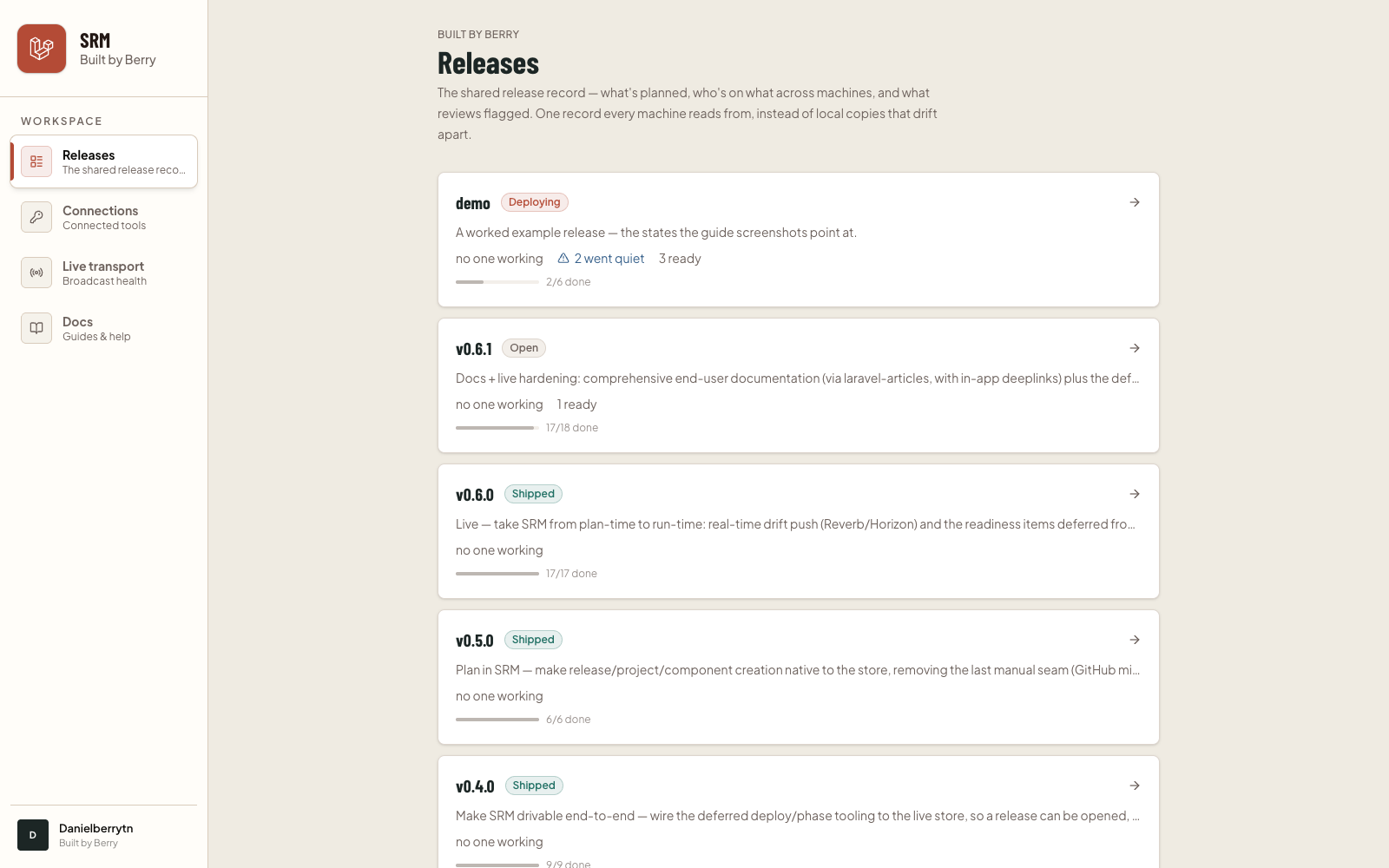
From top to bottom:
- The masthead shows the SRM logo and the name of the workspace you're currently in. A workspace is your team's shared space — its releases, its members, its connected tools. (More on workspaces in the Workspaces reference article.) Clicking the masthead always takes you home to Releases.
- Releases — "The shared release record." This is home base: the list of your workspace's releases and the way into any one of them. You'll spend most of your time here.
- Connections — "Connected tools." Where you link the outside tools SRM works with. See Connecting tools.
- Live transport — "Broadcast health." This one only appears if you own the workspace; it's a health readout for the live-updates system. If you don't see it, that's expected.
- Docs — "Guides & help." Opens this documentation in a new tab. It's here on every screen, so help is always one click away.
- Your account, at the very bottom, shows your initials, your name, and the workspace you're in.
#Your first look
Signing in drops you into your workspace with Releases as home. This is the shared list of everything your team is shipping or has shipped.
Open any release to see the whole picture for it — the pieces of work, how they're ordered, who's holding what, and how close it is to shipping. That release detail is where the real coordination happens, and it's covered end-to-end in Releases and Working a release.
One thing you'll notice right away: the app keeps itself current. As teammates make changes, you see them appear without reloading. A small status dot near the top of the screen tells you how fresh what you're looking at is — that's the subject of Understanding the Live indicator.
#Where to go next
- New to the vocabulary? Read Core concepts next — it's the map for everything else.
- Ready to dig into a release? Jump to Releases.
- Just want to get signed in and unstuck? See Getting in.