Working a release
A release starts as a plan — a list of work items, mapped out so the app knows what can happen in parallel and what has to wait. This guide is about the next part: actually driving it. Moving work items from Ready to Done, running several at once, and reading what the release screen shows you along the way.
There are two halves to this, and it helps to keep them straight:
- What you do happens through your connected assistant — asking it to start a work item, dispatch a wave, or wrap things up. (If your assistant isn't connected yet, see Connecting your tools.)
- What you watch happens on the release screen in the app. It has no buttons to push work forward; it's your live window into the shared record. Everyone looking at the same release sees the same picture, updating as things move.
Once you internalize that split — you drive from the assistant, you watch on the screen — the rest falls into place.
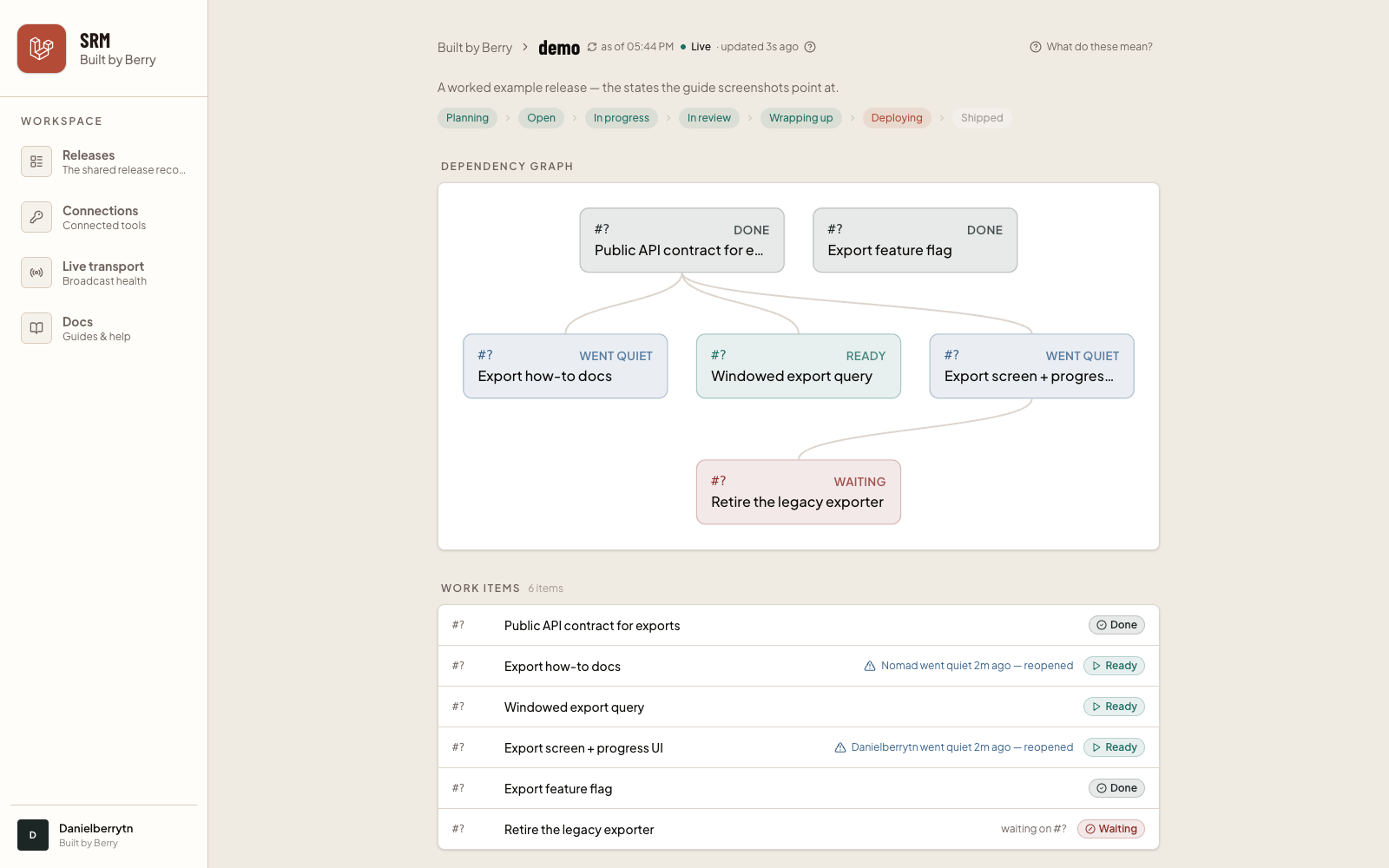
#The shape of the screen
Open a release and, from the top down, you get:
- The version and a phase strip — Planning, Open, In progress, In review, Wrapping up, Deploying, Shipped — with the release's current phase highlighted.
- A small live indicator and an "as of 3:41 PM" note. That's how fresh what you're looking at is; the Understanding the Live indicator guide covers the states in detail. There's a refresh control right next to it if you ever want to pull the latest by hand.
- The dependency graph — a compact map of which work items block which.
- The work items list — the heart of the screen, one row per task.
- Dispatch waves, when a parallel run is in flight (more below).
- Review findings and Deploy, which come into play as the release winds down.
If a label ever isn't obvious, the "What do these mean?" button opens a plain glossary — each term explained in everyday words, with its technical name in parentheses for anyone who wants it.
#The lifecycle of a work item
Every work item moves through the same short life. You'll see its current state as a colored pill on the right of its row:
- Ready — every prerequisite is finished, so this can be picked up next.
- Working — someone (a person or an agent) is on it right now.
- Waiting — it's blocked, waiting on other work items to finish first. The row tells you exactly which: waiting on #41, #43.
- Needs setup — the item's dependencies haven't been confirmed yet, so the app can't tell if it's safe to start.
- Done — merged and complete. This is final.
The normal path is Ready → Working → Done. What makes the whole thing move is that finishing one item can unblock others: when a work item lands and turns Done, anything that was Waiting on it re-checks its prerequisites, and if they're all met, it flips to Ready on its own. You don't do anything for that — you watch it happen.
#Starting a work item: claiming and the lock
To start something, you ask your assistant to begin the work item (the
/release-topic command, if you use commands directly). Two things happen behind
that one step:
- It claims the work item. A claim is an exclusive, cross-machine lock — the thing that stops two people, or two agents on different machines, from doing the same task twice. If someone already holds it, the claim is refused and your assistant tells you who has it. If the item isn't actually startable (a blocker isn't merged yet), it's refused too.
- It starts a branch for the work and marks the item Working.
On the release screen, a claimed item shows who's on it — their name, and a small "beat 3s ago" timestamp. That heartbeat is the claim quietly checking in to say "still working." As long as the beats keep coming, the item stays Working and stays locked to that person.
#When someone goes quiet
Claims are held by a live heartbeat, not forever. If whoever holds an item stops checking in — their machine slept, the session ended, the network dropped — the claim lapses and the item reopens for anyone to pick up. The screen is honest about this: you'll see "Sam went quiet 2m ago — reopened," and the item's pill returns to Ready.
This is a feature, not a failure. It means a release can never get permanently stuck behind a stalled machine — work that was abandoned mid-flight simply becomes available again. If it was your item and you come back, you re-claim it and carry on.
#Dispatching a parallel wave
The reason to map dependencies up front is so you can safely run many work items
at once. When several items are Ready and don't depend on each other, you can
ask your assistant to work on them in parallel — "work on these in parallel," or
the /release-parallel command — and it fans the work out: one isolated
workspace and one agent per item, all going at the same time.
That fan-out shows up on the release screen as a Dispatch wave.
A wave card gives you the whole run at a glance — a headline like 3/5 done, then one row per work item in the wave. Each row carries:
- The work item's name.
- A status that walks its own little lifecycle: Dispatched (queued up) → In progress → Proposed (its changes are up for review) → Done. If something can't finish, it shows Failed with the reason.
- A latest progress note — a one-line "here's where I am" from the agent working that item, so you're not guessing what "In progress" means.
- How long ago it last reported.
Here's the thing to hold onto: you dispatch the wave, then you watch it. The orchestration is not something you babysit. Each item claims itself, works in its own branch, reports its progress, and opens its changes for review when it's done. Your job during a wave is to read the board, not to push each item along.
Because the wave lives in the shared record — not trapped in one session — you can close your laptop and reopen the release screen later, or a teammate can watch the same wave from their machine, and it's all still there, current. If your assistant session ends mid-wave, reconnecting picks the wave back up where it was rather than starting over.
Watching a live wave. A wave streams its progress in real time only when live mode is on for your workspace. With live mode off, the wave still runs and the record is still correct — the screen just updates when you refresh rather than the instant each item reports. See Understanding the Live indicator.
#Findings and review
As work items are proposed and the release matures, it moves into review. Reviews and readiness checks don't quietly pass or fail — anything worth your attention shows up in the Review findings section as a finding.
Each finding tells you:
- Its severity — high, medium, or low.
- Its type — a Change review finding (about a specific work item's changes), a Readiness finding (about the release as a whole before it ships), or a Design note.
- Which work item it relates to, when it's tied to one.
- A short summary and, often, the reasoning behind it.
A finding stays Open until it's dealt with. You resolve findings through your assistant — fixing the underlying issue, or consciously deferring or accepting one with a reason. The count at the top of the section ("2 open") is your at-a-glance "is there anything left to look at." A clean release reads "Nothing flagged by review or readiness yet."
Findings matter because they gate the finish. When you wrap a release ("wrap the
release," or /release-wrap), the app runs the reviews, fills in the changelog,
and then holds if any high-severity finding is still unresolved — it won't
call a release ready to ship with a serious issue outstanding. That's the safety
rail between "the work is done" and "let's deploy it," which the Deploying a
release guide picks up from.
#Choosing which lenses run
Reviews aren't one-size-fits-all. Each review looks through a set of lenses — named perspectives like Security, Maintainability, or Migration safety — and each lens is what produces the findings you see. There are three review scopes, each with its own lens set:
- Change review — the lenses applied to a single work item's changes.
- Readiness review — the lenses applied to the whole release before it ships.
- Design gate — the lenses applied when pressure-testing an approach before the work is built.
Every project has a default lens selection that new releases inherit, so you rarely have to think about it. When you do, open Manage review lenses from the Review findings section of the release screen. For each scope you'll see the effective lenses — the ones that will actually run — with a badge saying whether they're the project default or overridden for this release.
If a particular release needs a different emphasis — say an extra security pass on a change that touches authentication — tick the lenses you want and choose Override for this release. The override applies to that release only and never changes the project default. To go back to inheriting, use Reset to project default. To set the default for every release in the project instead, edit the project's lenses from its settings.
Once a release has shipped, its lenses are frozen along with the rest of its history: you can still open the screen to see which lenses ran, but the controls are read-only.
#Putting it together: a release, start to finish
To see the whole rhythm in one place, here's a release moving through a normal session:
- It opens. The plan is in place, the dependency graph is confirmed, and the first work items show Ready. Everything downstream shows Waiting.
- You dispatch the first wave. Three independent Ready items go out at once. A Dispatch wave appears — 0/3 done — and within moments each row moves to In progress with a progress note.
- You watch. Items advance to Proposed as their changes go up. On the work items list, each one is Working with a live heartbeat.
- Work lands. As each item's changes merge, it turns Done. Items that were Waiting on them re-check and flip to Ready — the next wave is now available. You dispatch it.
- A hiccup, handled. One agent's machine drops off. Its item shows "went quiet — reopened" and returns to Ready. You (or a teammate) re-claim it and it continues. Nothing is lost.
- Review. With everything proposed, findings appear. You work through them — fixing, deferring, accepting — until nothing high-severity is open.
- Wrap and hand off. You wrap the release; the changelog fills in, the readiness gate passes, and the release is ready to deploy.
Through all of it, the pattern held: you decided what to start and when to wrap; the screen showed you everything else as it happened.
#The short version
- You drive from your assistant; you watch on the release screen. The screen has no buttons to advance work — it's your live window into the shared record.
- Work items flow Ready → Working → Done. Finishing one unblocks whatever was Waiting on it, which becomes Ready on its own.
- Starting an item claims it — an exclusive, cross-machine lock held by a heartbeat. If a holder goes quiet, the item reopens as Ready so a release never stalls permanently.
- A dispatch wave runs many Ready items at once. You dispatch it, then watch the board — each row reports its own status and a progress note. It's durable: reconnect or hand off and it's still there.
- Findings surface what review and readiness flag. High-severity findings gate the wrap, so a release can't be called ready with a serious issue open.
- Live mode streams all of this in real time; without it, refresh to catch up. Either way the shared record is the source of truth.